VDIWarmUp improves logon times for users by pre-logging onto the VM at system startup.
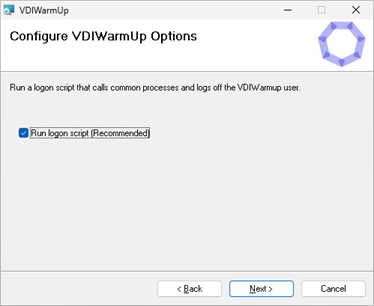
The VDIWarmUp user connects to the VM via RDP and optionally runs a profile logon script that calls common processes to improve application launch times for subsequent users.
Watch the Video - Windows 11 Multi-User in Treacle Mode
Warning: If you run this video in Full Screen you may receive a scareware blocker warning as the video appears to be emulating your desktop while obscuring your real desktop.
Choose to delete the VDIWarmUp user account and scheduled tasks when VDIWarmUp completes. VDIWarmUp will only run on the first boot.
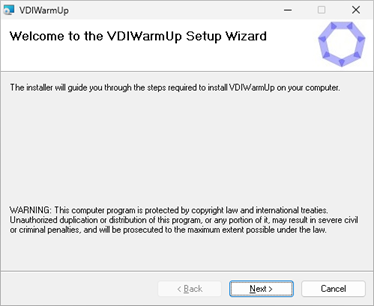
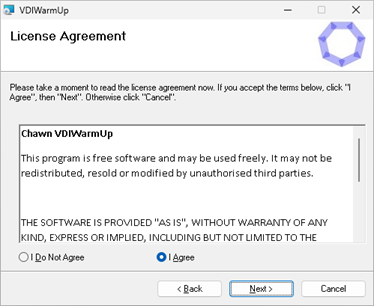
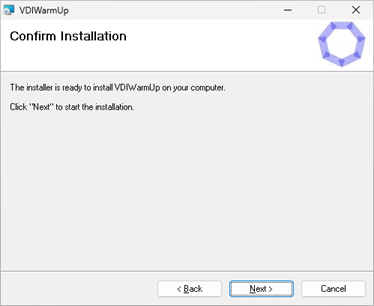
Click Next
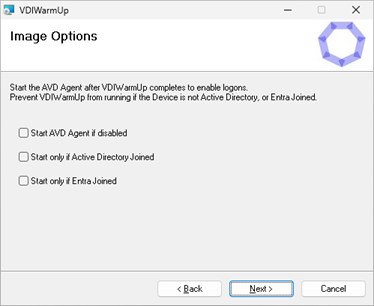
To prevent VDIWarmUp from running during deployment, select the appropriate option.
This will also prevent VDIWarmUp from running when starting the Master Image VM.
Click Next
To prevent AVD user connections while VDIWarmUp is running, VDIWarmUp can stop the Remote Desktop Agent Bootloader service at startup, and enable and start the service when VDIWarmUp completes.
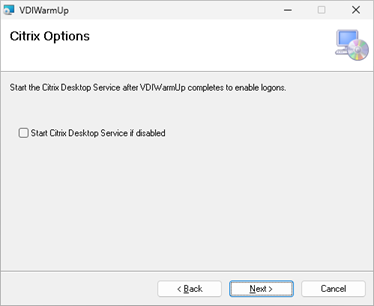
To prevent Citrix user connections while VDIWarmUp is running, VDIWarmUp can stop the Citrix Desktop Service at startup, and enable and start the service when VDIWarmUp completes.
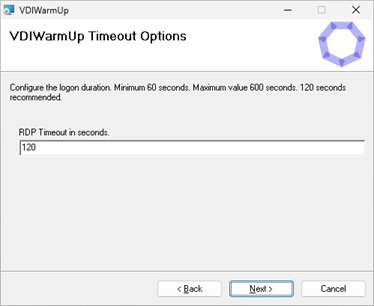
Specify a maximum session duration. This should be greater than the time required to run the logon script.
Click Next
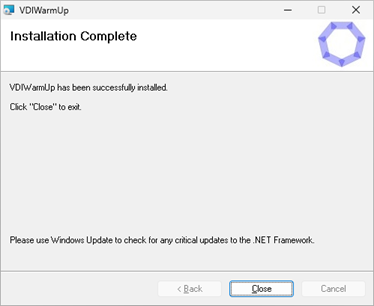
Click Close.
When installation is complete.
Modify C:\Windows\System32\Repl\Import\Scripts\VDIWarmUp.cmd based on your application environment.
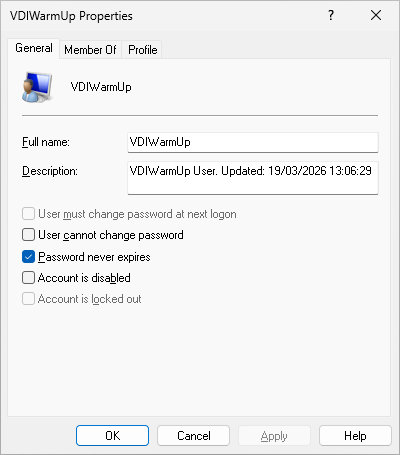
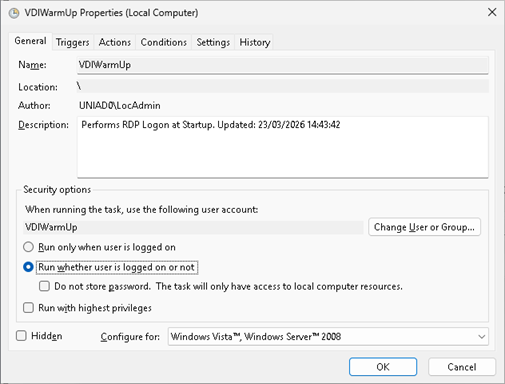
Run VDIWarmUp.exe /config (as Administrator) to create the VDIWarmUp user account, and the VDIWarmUpConfig and VDIWarmUp Scheduled Tasks.
Run VDIWarmUp.exe /test (as Administrator) to launch an RDP Connection, create the VDIWarmUp user profile and validate your configuration.
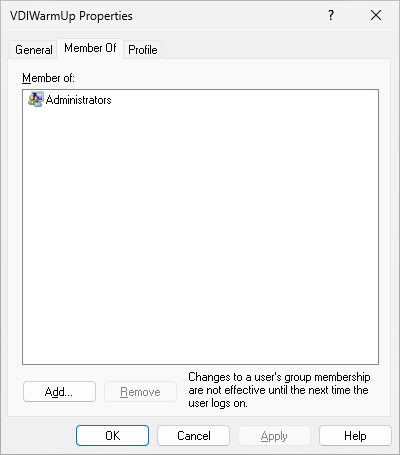
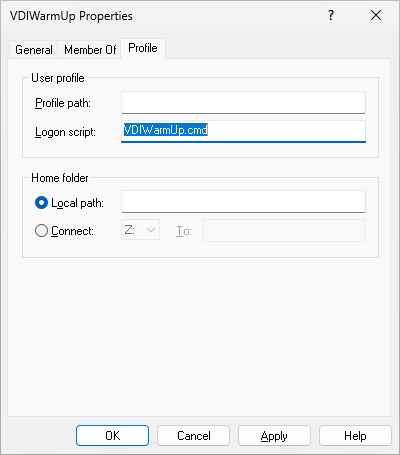
Check that VDIWarmUp is a member of Administrators and that the Profile Logon script is set correctly.
The password is rotated to a new random complex value at every launch. (Contains at least five uppercase letters, five lowercase letters, five numbers, and five special characters)
You can manually generate a new password by running VDIWarmUp.exe /config (as Administrator)
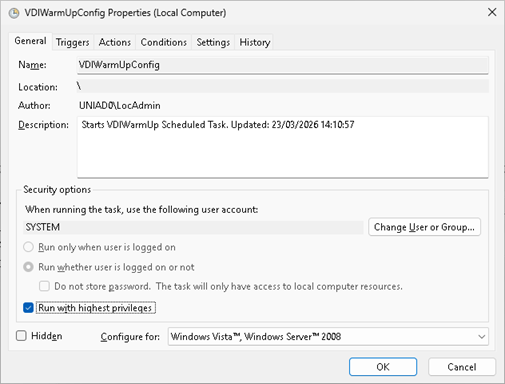
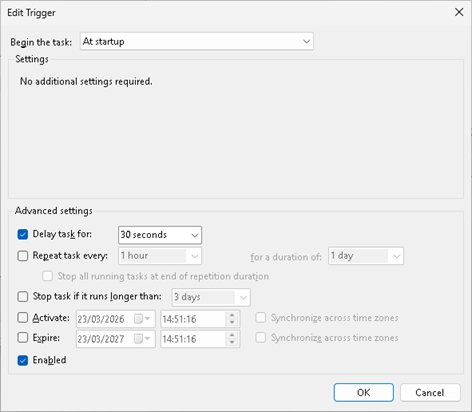
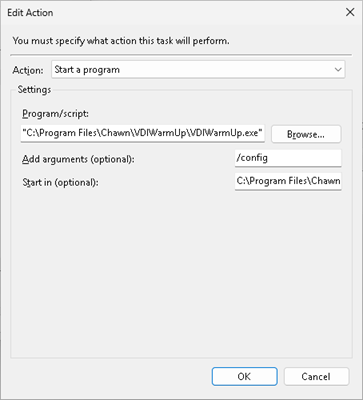
Validate the VDIWarmUpConfig scheduled task.
The VDIWarmUpConfig scheduled task runs as SYSTEM. It updates the VDIWarmUp scheduled task, then starts the VDIWarmUp scheduled task.
Validate the VDIWarmUp scheduled task.
You can run either task manually. No connection window will be visible however you can monitor progress by watching the Users tab in Task Manager and by reviewing the VDIWarmUp-SYSTEM.log and VDIWarmUp-VDIWarmUp.log files.
No Trigger.
The VDIWarmUpConfig scheduled task invokes the VDIWarmUp scheduled task
Delete VDIWarmUp user and scheduled tasks when complete
msiexec /i VDIWarmUp.msi DELETEVDIWARMUP=1 /qb
Start only if Entra joined
msiexec /i VDIWarmUp.msi WAITONENTRA=1 /qb
Start only if Active Directory joined
msiexec /i VDIWarmUp.msi WAITONAD=1 /qb
Manage the Microsoft AVD Agent
msiexec /i VDIWarmUp.msi STARTAVDAGENT=1 /qb
Manage the Citrix Desktop Service
msiexec /i VDIWarmUp.msi STARTCITRIX=1 /qb
Registry Configuration
All properties are located inHKEY_LOCAL_MACHINE\Software\Chawn\VDIWarmUp\Settings
String
Enabled
Disabled
Run Logon Script
RUNSCRIPT
1
0 or Null
Delete VDIWarmUp user and scheduled tasks when complete
DELETEVDIWARMUP
1
0 or Null
Start only if Entra Joined
WAITONENTRA
1
0 or Null
Start only if Active Directory Joined
WAITONAD
1
0 or Null
Manage the Microsoft AVD Agent
STARTAVDAGENT
1
0 or Null
Manage the Citrix Desktop Service
STARTCITRIX
1
0 or Null
Session Duration
RDPTIMEOUT
Minimum 60 Maximum 600 Recommended 180
File Configuration
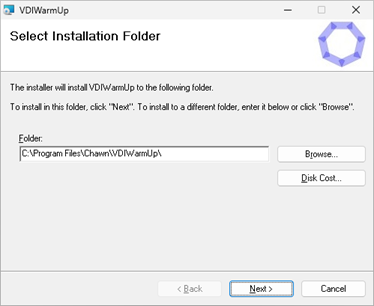
VDIWarmUp.exeand supporting files are located inC:\Program Files\Chawn\VDIWarmUp
The profile logon script (VDIWarmUp.cmd) and Add-AppXpackages.ps1 scripts are located inC:\Windows\System32\Repl\Import\Scripts
ModifyVDIWarmUp.cmdbased on your application environment. It is recommeded to retain the shutdown /l command for a faster log off, instead of waiting for the session duration (RDPTIMEOUT)to expire.
Events from the VDIWarmUpConfig scheduled task are logged to C:\Windows\Temp\VDIWarmUp-SYSTEM.log
Events from the VDIWarmUp scheduled task are logged to C:\Windows\Temp\VDIWarmUp-VDIWarmUp.log
Command line parameters
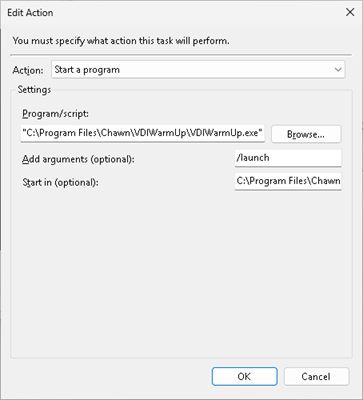
"C:\Program Files\Chawn\VDIWarmUp\VDIWarmUp.exe"
/config
Creates VDIWarmUp user, creates VDIWarmUpConfig and VDIWarmUp Scheduled Tasks. Does not connect via RDP.
/launch
Updates VDIWarmUp user and VDIWarmUp Scheduled Task. Connects via RDP and respects all configured parameters.
/test
Same as /launch except that STARTAVDAGENT, STARTCITRIX, WAITONAD and WAITONENTRA parameters are ignored.
/delete
Deletes the VDIWarmUp user account, and the VDIWarmUpConfig and VDIWarmUp scheduled tasks.
/config may be run as an Administrator or run as a Scheduled Task as SYSTEM
/launch may be run as an Administrator or run as a Scheduled Task as VDIWarmUp. Respects all parameters.
/test may be run as an Administrator or run as a Scheduled Task as VDIWarmUp. Ignores all parameters except for RUNSCRIPT and RDPTIMEOUT.
/delete may be run as an Administrator.
VDIWarmUp.cmd (Profile Logon Script)
Add common and core application processes to the logon script.
Don't run processes that don't return after launching. This will pause the script indefinitely.
Use start to launch processes asynchronously
Adjust the timeout value in the script based on testing on a cold machine
Adjust the RDPTIMEOUT value to a greater value than is required to run the logon script
To deploy AppX Packages, remove the rem from the powershell command. This will add approximately 60 seconds to the VDIWarmUp process. Ensure that RDPTIMEOUT is at least 180.
rem Chawn VDIWarmUp Logon Script
rem ------------------------------------------------------Start common apps.
start notepad
start explorer /SEPARATE
start msedge
start taskmgr
start ms-settings:
rem ------------------------------------------------------Start your apps. Edit as necessary
rem start winword
rem start excel
rem start outlook
rem start acrobat
rem ------------------------------------------------------Deploy AppX Packages - start Teams and OneDrive - increase RDPTIMEOUT to 180
rem powershell.exe -WindowStyle Maximized -ExecutionPolicy Bypass -File "C:\Windows\System32\Repl\Import\Scripts\Add-AppxPackages.ps1"
rem ------------------------------------------------------Wait for apps to load
timeout /t 30 /nobreak
rem ------------------------------------------------------LogOff
shutdown /l
Testing
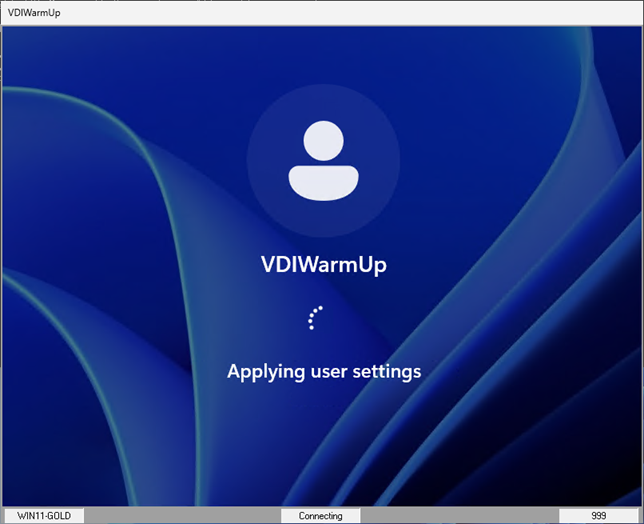
On a Multi-User operating system or Server operating system, the VDIWarmUp window will open interactively and display the logon and logoff process.
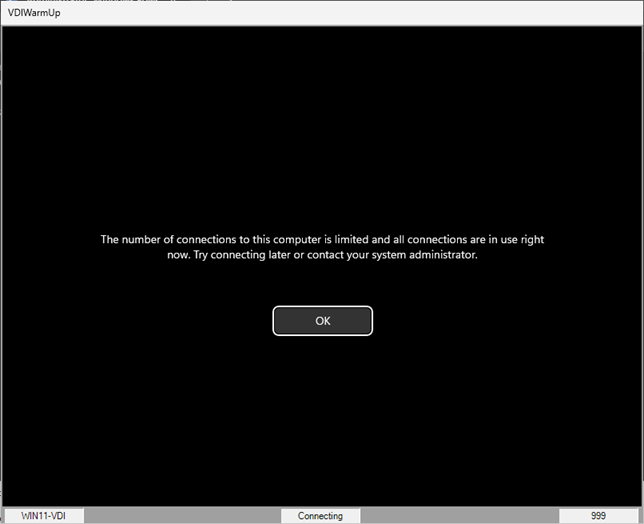
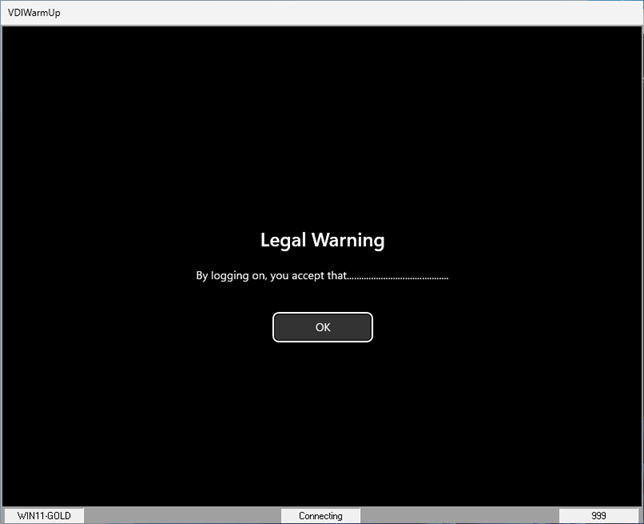
On a single user operating system, Windows will not permit more than one RDP connection so the following is displayed.
This is a successful test. You can either click OK or wait 60 seconds until disconnection.
Reboot the VM and review VDIWarmUp.log to confirm a successful configuration.
VDIWarmUp.exe /test will ignore the following parameters.
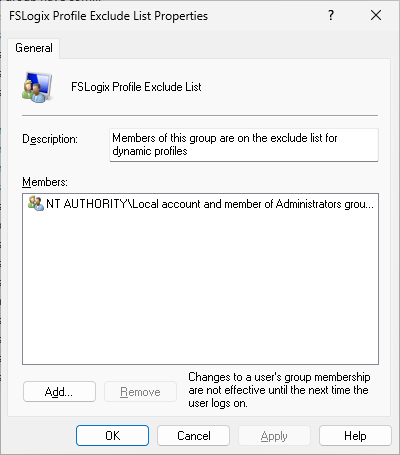
To prevent logon issues with User Profile Management, ensure that VDIWarmUp or members of Administrators are excluded from User Profile Management.
e.g. With FSLogix, either add VDIWarmUp or Local Account and members of Administrators group to FSLogix Profile Exclude List and FSLogix ODFC Exclude List local groups in your master image.
Create an Image that is configured for either Active Directory or Entra ID
Prevent user connections until VDIWarmUp has completed
Install VDIWarmUp. During installation, set 'Start only if Active Directory joined' (WAITONAD=1), even if you intend to join Entra ID, and 'Start AVD Agent if disabled' (STARTAVDAGENT=1).
Create C:\Scripts\AVD-Config.ps1.
AVD-Turbo will run AVD-Config.ps1 after joining Active Directory or Entra ID and optionally joining an AVD Host Pool.
Add the following text to AVD-Config.ps1to stop and disable the 'Remote Desktop Agent Bootloader' service.
This will prevent user connections while VDIWarmUp is running.